 Camo Grind
What you need
- Stream Deck app 6.5 or newer, on Windows 10+ or macOS 12+
- Call of Duty: Modern Warfare 4. New season weapons arrive by themselves.
- OBS (or any streaming app with a browser source), only if you want the on-stream overlay
- Camo screenshots, optional. Keys show stand-in patterns until you add your own.
Nothing reads the game. Every kill and camo is logged by your key presses, so there's no risk to your Call of Duty account.
Install and open Camo Grind
- Install Camo Grind from the Elgato Marketplace, or double-click the
.streamDeckPluginfile. - In the Stream Deck app, find Camo Grind in the action list on the right and drag any of its keys onto your deck.
- Click the key. At the top of its settings is a 4-step checklist, which ticks itself off as you go.
- Press Open Camo Grind. Your browser opens the tracker at
http://127.0.0.1:39150/.
That page is your setup and editing screen. The plugin runs it on your own PC: nothing goes online, and your progress stays on your computer.
Keys need something to talk to. Presses work while the tracker page or the OBS overlay is open. While neither is open, keys show a dashed border and a press shows a warning.
Your keys
Camo Grind has four key types. Drag in as many of each as you like and pick what each one does in its settings.
| Key | Shows | Press | Settings |
|---|---|---|---|
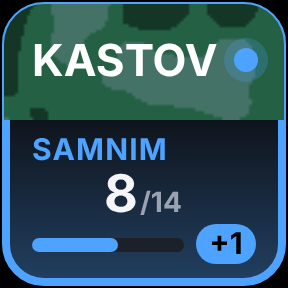
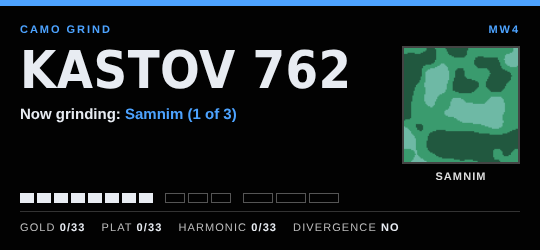
| Weapon | The camo you're on, with its picture, counter and progress bar | +1 to the counter, tick the camo when done, or track its challenge | Gun 1 or Gun 2; Now grinding, Up next or Track |
| Pick weapon | A grid icon | Turns your other Camo Grind keys into a class menu, then a weapon menu. Tap a gun to grind it | Which gun it fills |
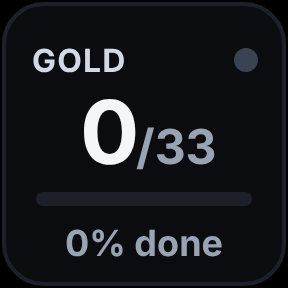
| Stat | One number: overall %, Gold, Platinum, Harmonic Break, Divergence, mastery, Military or Special totals | Refreshes all keys | What it shows. Mastery (follows the Mode key) switches between Warzone, Multiplayer and DMZ |
| Control | A button | Swap guns, Undo, Mode, +1, −1, Up next, Track or Reset | Which button |
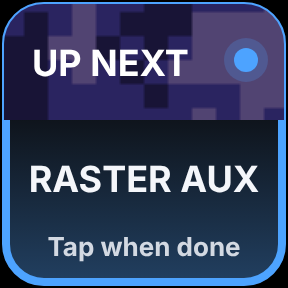
Up next shows the camo after the one you're grinding. Tap it when you've finished the current camo and Camo Grind moves on. If you were tracking a challenge, the tracker moves to the next camo's challenge too.
Mode cycles Warzone → Multiplayer → DMZ. Each mode has its own challenge targets and its own count, just like the game: Raster Aux is 10 longshot kills in Warzone but 20 in Multiplayer, and kills in one mode don't count towards another. Switch back and your count for that mode is still there.
A suggested layout
For a 15-key Stream Deck. Use Stream Deck's own Next Page and Previous Page keys (under Navigation) to move between pages.
Page 1, grinding
Page 2, progress
The Pick weapon menu uses every other Camo Grind key on the page, so a full page of Camo Grind keys gives you the biggest menu.
First run on the tracker page
Spend five minutes here once, and the keys do the rest.
- Pick your mode: Warzone, Multiplayer or DMZ. It only changes which challenge targets you see, and you can switch any time with the Mode key.
- Tick off what you've already earned. Find each weapon (search, or filter by class), then tick its Military camos, specials, Gold, Platinum and Harmonic Break. Camo Grind works out what's next and what's still locked, e.g. Platinum unlocks once every gun in that class has Gold.
- Pick your gun. Press 1st on the weapon you're grinding, and 2nd if you're levelling a second gun alongside it. Or use a Pick weapon key.
- Close the page if you like. With the OBS overlay open, your keys keep working without it.
Made a mistake? Undo reverses the last press, and you can fix any counter or tick on the page.
Add the overlay to OBS
- In OBS, add a Browser source.
- Untick Local file and paste an address from the table below.
- Set the width and height to the size listed. Use the two-gun size if you grind a second gun.
- Click OK and place it on your scene.
| Style | Address | One gun | Two guns | What it shows |
|---|---|---|---|---|
| Card | http://127.0.0.1:39150/?overlay&style=card | 560 × 380 | 560 × 470 | Lower third with the camo ladder, counter and camo picture |
| Strip | http://127.0.0.1:39150/?overlay&style=strip | 1280 × 84 | 1280 × 166 | Slim bar across the bottom of the screen |
| Badge | http://127.0.0.1:39150/?overlay&style=badge | 300 × 460 | 620 × 470 | Big camo picture, weapon and counter |
| Completion | http://127.0.0.1:39150/?overlay&style=complete | 420 × 840 | 420 × 840 | Completionist, mastery and prestige progress |
| Board | http://127.0.0.1:39150/?overlay&style=board | 380 × 510 | 380 × 510 | Account totals, good for breaks |
Sizes are in pixels. The tracker page lists the same addresses, so you can copy them from there too.
The overlay updates the instant you press a key, and it counts as an open page, so your keys work all stream without the tracker page open. You can add several styles at once: each is its own browser source.
Camo pictures (optional)
Camo Grind can't include the game's camo artwork, so every camo starts with a stand-in pattern in a matching colour. To show the real camos, add your own screenshots.
- Screenshot each camo in game and crop it to a square.
- Save it as a PNG or JPG named after the camo, e.g.
Gold.png,Night Ops.png,Raster Aux.png. Capitals, spaces and punctuation don't matter. - Put them in the camos folder:
Documents\Camo Grind\Camoson Windows,Documents/Camo Grind/Camoson Mac. Or pick any folder in Camos folder in a key's settings; sub-folders are searched too.
The key settings show how many pictures were found. A new picture replaces its stand-in within about 30 seconds.
For the camos every gun shares, use these names: Military 1 to Military 8, Gold, Platinum, Harmonic Break, Divergence, and the mastery and prestige camo names as they appear in game.
Make it yours
Every key's settings have a Look section. Changes apply to all your Camo Grind keys and the OBS overlays at once.
| Setting | What it changes | Default |
|---|---|---|
| Glow (gun 1) | Gun 1 and the accent colour on keys and overlays. Pick a preset or Custom for any colour | Pilot blue |
| Gun 2 | Gun 2's colour on keys and overlays | White |
| Overlay text | Text colour on the overlays | Off-white |
| Overlay panel | Background colour behind the overlays | Black |
| Panel opacity | How see-through that background is, 0–100% | 86% |
Tip: pick a gun 2 colour from the opposite side of the colour wheel to your glow, so you can tell the guns apart at a glance. Orange goes with blue, magenta with lime.
Updates and your progress
Weapons and challenges update by themselves. When a season adds weapons, Camo Grind downloads the new game data within 6 hours, or when Stream Deck restarts. Open pages and overlays refresh on their own, and your progress is kept. The key settings show which data update you have under Game. If you're offline, it keeps using the copy it already has.
Your progress is saved on your PC by the plugin, so the tracker page, your keys and every overlay always match. It lives in %APPDATA%\CamoGrind on Windows and ~/.config/CamoGrind on Mac. Each game gets its own save, so next year's game won't mix with this one.
Moving to a new PC, or want a backup? On the tracker page, press Copy save code and keep the code somewhere safe. On the new PC, paste it in and press Load code.
Troubleshooting
| Problem | Fix |
|---|---|
| Dashed keys, warning on press | Nothing is open for the keys to talk to. Open the tracker page (Open Camo Grind in any key's settings), or make sure the OBS overlay source is in your scene. |
| Tracker page won't load | Restart the Stream Deck app. Check nothing else on your PC uses port 39150, and allow Stream Deck through your firewall if asked. |
| Overlay blank after an update | In OBS, right-click the browser source → Properties → Refresh cache of current page. |
| Stand-in instead of my screenshot | Check the file is named after the camo (e.g. Night Ops.png) and sits in the camos folder shown in the key settings. Give it 30 seconds. |
| Weapon menu shows only a few guns | The menu uses your other Camo Grind keys on that page. Press the More key in the menu to see the next set, or add more Camo Grind keys to the page. |
| A challenge target looks wrong | Check the Mode key is on the mode you're playing. Targets differ between Warzone, Multiplayer and DMZ. |
| A press counted twice or on the wrong gun | Press Undo. It reverses the last press, whichever key made it. |